Stenographer
From https://github.com/google/stenographer:
Stenographer is a full-packet-capture utility for buffering packets to disk for intrusion detection and incident response purposes. It provides a high-performance implementation of NIC-to-disk packet writing, handles deleting those files as disk fills up, and provides methods for reading back specific sets of packets quickly and easily.
Stenographer uses AF-PACKET for packet acquisition.
Output
Stenographer writes full packet capture to /nsm/pcap/. It will automatically start purging old data once the partition reaches 90%. This value is configurable as shown in the Configuration section below.
Analysis
You can access full packet capture via the PCAP interface:
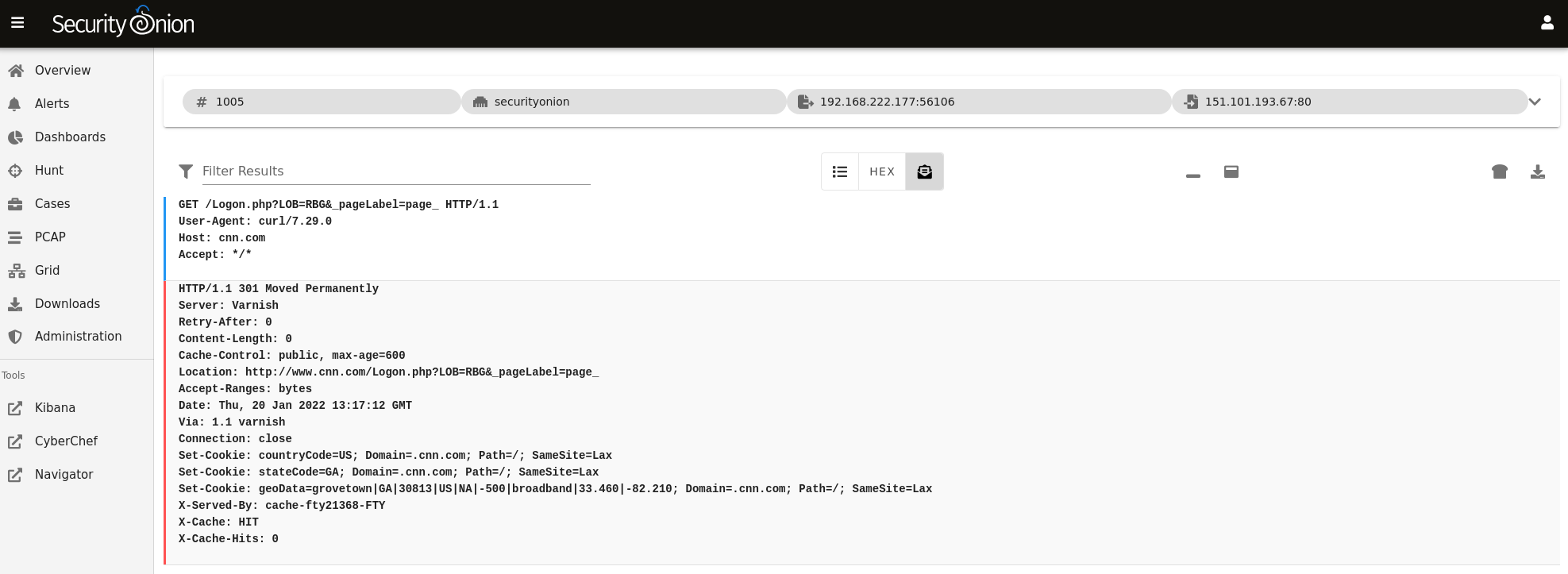
Alerts, Dashboards, Hunt, and Kibana allow you to easily pivot to the PCAP interface.
Command Line
You can also access packet capture from the command line of the box where the pcap is stored using a steno query as defined at https://github.com/google/stenographer#querying. In the following examples, replace “YourStenoQueryHere” with your actual steno query.
The first option is using docker to run stenoread. If the query succeeds, you can then find the resulting pcap file in /nsm/pcaptmp/ in the host filesystem:
sudo docker exec -it so-steno stenoread "YourStenoQueryHere" -w /tmp/new.pcap
We’ve included a wrapper script called so-pcap-export to make this a little easier. For example:
sudo so-pcap-export "YourStenoQueryHere" output.pcap
If the query succeeds, you can then find the resulting pcap file in /nsm/pcapout/ in the host filesystem.
Configuration
Stenographer reads its configuration from /opt/so/conf/steno/. However, please keep in mind that if you make any changes to this directory they may be overwritten since the configuration is managed with Salt.
For example, suppose you want to change the default value for purging old pcap. You could add the diskfreepercentage option in the steno section of the Salt pillar and set the value to something appropriate for your system. For example:
steno:
  diskfreepercentage: 20
Maximum Files
By default, Stenographer limits the number of files in the pcap directory to 30000 to avoid limitations with the ext3 filesystem. However, if you’re using the ext4 or xfs filesystems, then it is safe to increase this value. So if you have a large amount of storage and find that you only have 3 weeks worth of PCAP on disk while still having plenty of free space, then you may want to increase this default setting. To do so, you can add the maxfiles option in the steno section of the Salt pillar and set the value to something appropriate for your system. For example:
steno:
  maxfiles: 120000
Diagnostic Logging
Diagnostic logging for Stenographer can be found at /opt/so/log/stenographer/. Depending on what you’re looking for, you may also need to look at the Docker logs for the container:
sudo docker logs so-steno
Disabling
If you need to disable Stenographer, you can do so in two different ways. If you just want to disable it on a single sensor, then you can edit that sensor’s minion.sls file. If the file doesn’t already have a steno section, then add the following to the end of the file:
steno:
  enabled: false
If you want to disable Stenographer globally across all your sensors, then you can add that entry to your global.sls file.
More Information
See also
For more information about stenographer, please see https://github.com/google/stenographer.